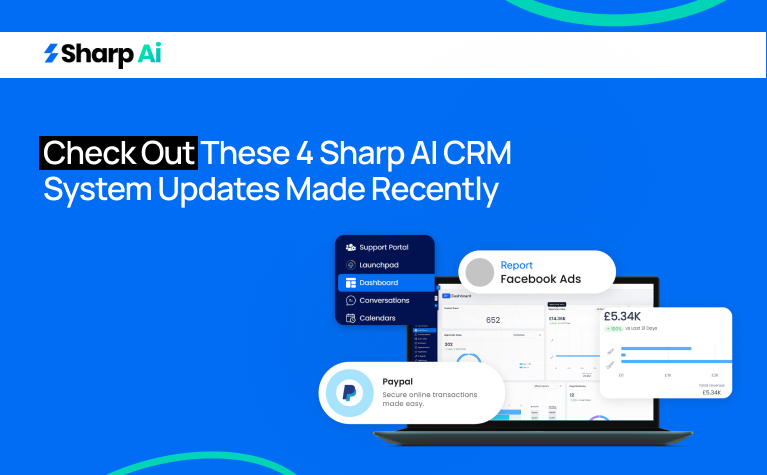
A few weeks ago, we noticed some blockers faced by 11% of our software users. The development team went into panic mode and figured out that a few updates here and there would suffice. Without any further ado, here are 4 of Sharp AI CRM system updates that we rolled out recently.
If you want more detailed, update-specific instructions, drop a comment and we’ll get back to you ASAP!
Sharp AI CRM System Updates:
Here are the 4 CRM system updates we made. Scroll down to get first-hand experience on how to use these.
- Canva Integration
- Ask AI
- Outbound Call without buying phone number in Sharp AI
- AI Decision Maker in Workflow
CRM System Updates: #1 Ask AI
What Is an AI Decision Maker?
Good bye team meetings! Hello AI Decision Maker!
Our new AI Decision Maker is an intelligent routing engine inside workflows. By using this feature, manually configured filters become simply explained workflows. This CRM system update evaluates contact data and determines the correct branch automatically. This allows workflows to adapt without requiring ongoing logic updates.
AI Decision Maker in Workflow
Instead of building complex logic trees, multiple conditions, AI Decision Maker provides simple instructions and determines the most appropriate branch. This simplifies workflow, maintains accuracy and flexibility across large volumes of contacts.
Key Benefits of AI Decision Maker
- Less Workflow Maintenance
Once set up, the AI updates itself as contact data changes. You don’t need to keep fixing filters or rules.
- Easy to Scale
The AI can handle a small or large number of contacts without slowing down your workflow.
- Fewer Human Errors
AI decisions stay consistent. It avoids mistakes caused by missed or overlapping rules.
- Simple Instructions
You can use plain English. No coding or complex rule setup needed.
How To Set Up an AI Decision Maker?
Step 1: Choose or Create a Workflow
Log in to your sub-account. Click Automation in the left menu. Edit an existing workflow or click + Create Workflow to start a new one from scratch, a template, or a recipe.
Step 2: Add the AI Decision Maker
Make sure your workflow has a trigger (like Contact Changed or Form Submitted).
Click the + icon in the workflow builder. On the right panel, go to AI Actions and select AI Decision Maker. Give the action a clear name so it’s easy to manage.
Step 3: Write Clear Instructions
In the Instructions field, explain how contacts should be routed. Be clear about what the AI should check, like engagement score or company size.
Step 4: Add Extra Context
Use the Additional Context field to give more details. You can include business rules, segments, or limits to guide the AI.
Step 5: Default Branch
The Default Branch is added automatically. It works as a fallback if no other rules match.
- It cannot be renamed or deleted
- It keeps the workflow running
- It stops contacts from getting stuck
Step 6: Add Custom Branches
Create branches to send contacts to different paths. Each branch should have:
- A clear name (like “High Priority – Sales”)
- A short note explaining when it should be used
Step 7: Add More Branches
Click + New Branch to add more paths. Use clear names and short descriptions. You can use branches for:
- Discount offers
- Product education
- Case studies
- Re-engagement campaigns
Step 8: Save the Action
Click Save Action when you’re done. The AI will now review each contact and send them to the right path automatically.
Canva Integration (Bonus)
You can connect Canva to Sharp AI Media Storage. This lets your team view and use designs in one place. This setup helps you access Canva files directly inside Media Storage.
CRM System Updates: #2 Canva Integration:
What is Canva Integration in Media Storage?
Canva Integration connects one Canva account to a specific Sharp AI sub-account. This lets you access Canva designs directly inside Media Storage in a dedicated Canva view. From there, you can browse your designs, download files, open supported designs in Canva for editing, and import copies into My Media so they can be used across Sharp AI.
Key Benefits of Canva Integration in Media Storage
- Faster Creative Workflow: You can browse, open, download, and import Canva designs directly inside Media Storage without switching tools.
- Centralized Asset Management: Final designs can be imported into My Media, where they’re stored and reused across Sharp AI.
- Team Visibility: Once connected, everyone in the same location can access and view Canva assets.
- Cleaner Collaboration: Imported files are saved as separate assets, which avoids confusion from shared links or manual downloads.
How To Setup Canva Integration
Connecting Canva
Connecting Canva correctly lets your location browse designs, export files, and import final assets into My Media without permission problems.
- Go to Media Storage
- Click Connect Canva
- Sign in through the Canva login page that opens
- Click Allow to give access
- Return to Media Storage; Canva will now show as Connected
- Select Canva from the My Media dropdown to view, edit, and import designs
Canva Editing limitations
- Private Canva files cannot be edited inside Sharp AI
- If you are not the original installer and try to edit, you will see this message:
“You have view-only access to this media. To make changes, import it into your own storage or reach out to your admin for access.”
Multi-User Access Behavior (by User Type)
Canva is connected at the location level, so access depends on who set it up.
Installer (person who connected Canva)
- Full access to edit Canva files (if the file allows editing)
- Can import designs into Sharp AI
Other users in the same location
- Can view and search Canva assets
- Can download designs
- Can import designs into their own My Media
- Cannot connect a different Canva account unless the current one is removed
- Cannot directly edit Canva files (view-only access)
How to Disconnect Canva
Disconnecting removes the Canva OAuth connection and stops Canva designs from showing in Media Storage. Any files you already imported into My Media will stay there.
How to Disconnect
- Go to App Marketplace
- Open Installed Apps
- Find Canva
- Click Uninstall
What Happens After Disconnecting
- Access to Canva is revoked
- Canva designs no longer appear inside Media Storage
- Files you previously imported into My Media remain saved
- You can connect a different Canva account after uninstalling and reconnecting
Basically, it unplugs Canva from Sharp AI, but it doesn’t delete what you already brought in.
CRM System Updates: #3 Ask AI
We’ve also rolled out a new AI assistant called Ask AI. It helps you write content in your brand voice, build a new community, or get quick answers whenever you need them. No need to switch between tools or tabs. Ask AI works as your built-in assistant inside Sharp AI. We’re starting with a few key features and will keep adding more over time.
What is Ask AI?
Ask AI is a built-in assistant for Sharp AI users. It uses AI along with your brand details to help you work directly inside Sharp AI from one place. You can access Ask AI from the top navigation bar. It also has a full-screen mode so you can plan, create, and work without switching screens.
Note: To create personalized or branded content, make sure your brand voice is set up in Marketing > Branded Content > Brand Voice.
What can Ask AI do?
Here’s what Ask AI currently supports:
- Create Branded Content
No more generic AI writing. Ask AI uses your brand voice settings to create content that sounds like you. It can write emails, newsletters, and social media captions that match your tone. - Create Communities
You don’t need to search through menus anymore. Just tell Ask AI what kind of community you want, and it will guide you step by step inside the chat. - Answer Questions or Give Ideas
You can ask for help with campaign ideas, blog CTAs, or general inspiration. Ask AI responds directly with suggestions. - Execute Actions in Sharp AI (MCP-powered)
Ask AI can perform supported actions inside the platform, like creating or updating records, rescheduling appointments, pulling data, or bulk-updating opportunities, based on your permissions. For examples and rules, see How to Use the MCP Server within Ask AI.
How to use Ask AI Bot?
- Click the Ask AI Bot icon in the top navigation bar. Type what you need, like content, a new community, ideas, or questions. The bot will guide you or respond instantly.
- You can also view chat history and go back to older chats using the toggle next to the full-screen option.
Open Ask AI from the left navigation
It opens in a full-screen workspace, not a small chatbot in a corner. This helps you focus on work and handle bigger tasks without leaving Sharp AI. You can access it from both Agency level and Sub-account level.
- Go to the left navigation panel in your account
- Click Ask AI (it appears as a menu item)
- Inside the workspace, you can:
- Click New chat to start a new conversation
- Use Search to find previous chats (if available)
CRM System Updates: #4 Outbound Call Without Buying Phone Number
You can now make voice calls directly from Sharp AI using a phone number you already own. You don’t need to buy a Sharp AI number first. This makes it much easier to get started with calling. Earlier, you had to purchase a number before making any calls. Now, you can verify your existing number and start calling in less than a minute.
How it works
- When you open the dialer without a purchased number, you’ll see an option to use your existing phone number.
- Click Use your existing phone number and enter the number you want to show as your caller ID for outgoing calls.
- You’ll get a call on that number. Answer it and enter the 6-digit code to confirm you own it.
- After that, you can make a test call to yourself. To call other people, you’ll need to complete identity verification.
How to Experience Sharp AI CRM system updates? Here’s What to Do!
Are you confident you need these updates? If the answer is yes; all you need to do is dial +447700174004 or drop an email at info@sharpai.app to schedule a demo.
If you are a bit indecisive, you can also get a 7-day FREE TRIAL to allow your teams to experience and use the software without making any monterey commitments. Sounds doable? Let’s connect here!